Connection
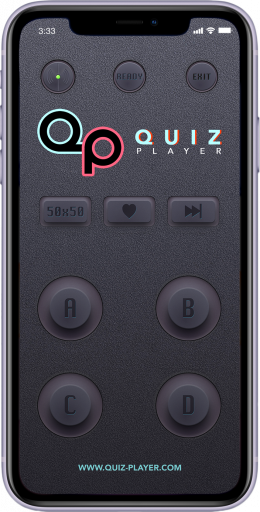
To start using Quiz Player - Remote Control application download it from the official site Google Play or Apple Store. Mobile phone and desktop application must be connected to the same network. The wifi signal strength should be good. Launch the Quiz Player desktop app and the Quiz Player - Remote Control mobile app. If you have a firewall installed, please allow the application all the requested connections otherwise, the connection will not be established. If the firewall does not offer to add the application to exceptions automatically, you will need to be done manually (see your firewall manual).
After this push Connect Button in the mobile application - if everything is done correctly, then you see the green indicator, if the indicator is blinking - check your connection and firewall.
Single mode
If you are a host, then you can start a quiz in single player mode, for this, the player must click on the Ready Button. when you press this button, the green indicator under the player's number in the desktop application and the "Ready" button in the mobile application will light up.* Next, press the "start" button in the Quiz Player desktop application.
If you do not press the Ready button, you will need to use the mouse or keyboard to control the game.
Multiplayer mode
For multiplayer mode, each of the players (up to 4) must click on the Ready Button, when you press this button, the green indicator under the player's number in the desktop application and the "Ready" button in the mobile application will light up.* When all players are ready, press "start" in the Quiz Player desktop application.
* It is important that the green light is on in both the mobile and desktop application at the same time, if the indicator in the desktop application goes out when you click on the button in "Ready" in the mobile application, then in the desktop application you need to click on the indicator or use a numbers on keyboard (1-4) of the corresponding player, this action will reset its readiness status.